
Setting Up Your QuickBooks for the First Time instructs you completely all there is to know about QuickBooks setup. Come across better tips, examples, and strategies to better results.
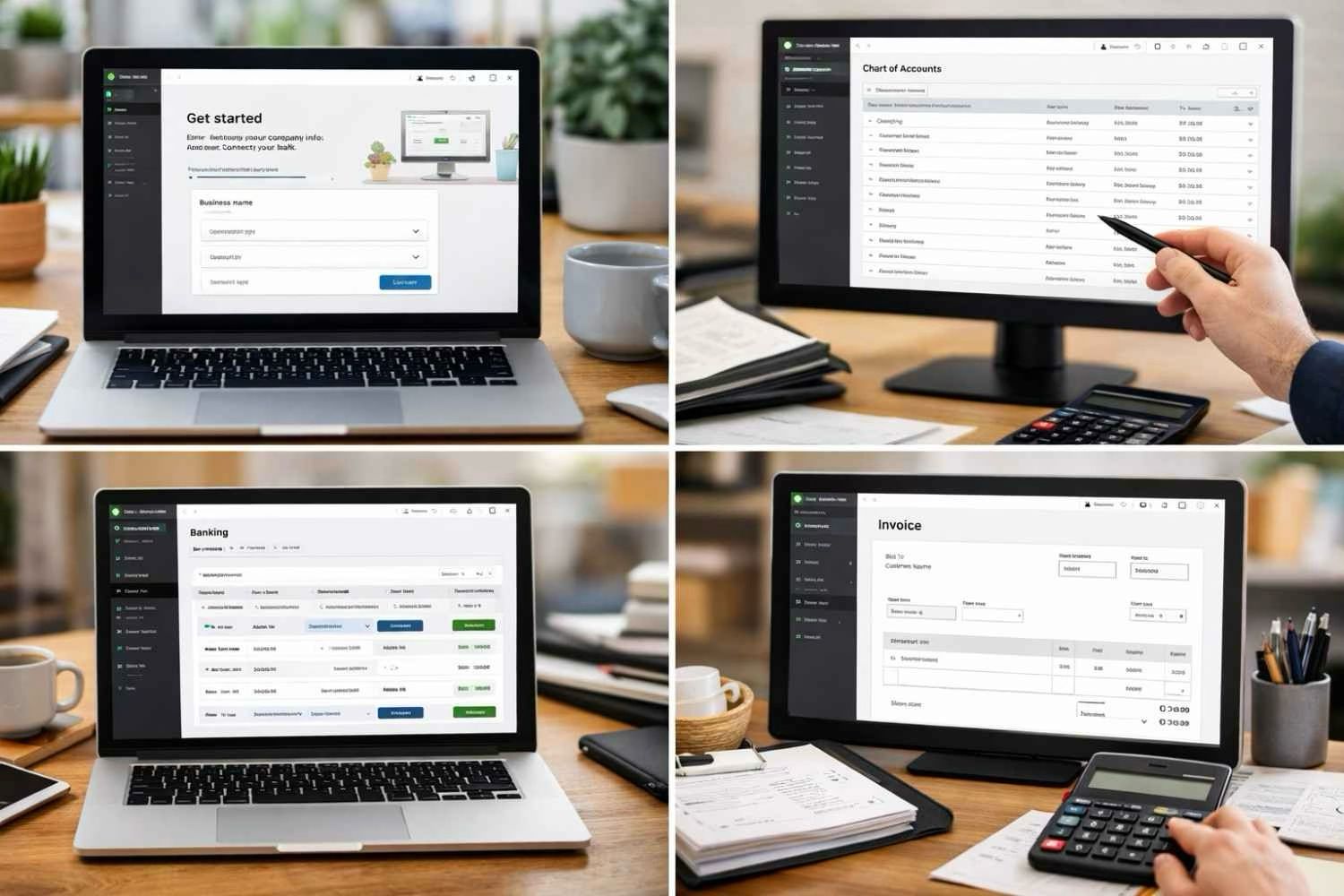
What is QuickBooks setup?
QuickBooks setup is a way by which you get your QuickBooks Online (QBO) strictly customized so that it can meet financial and operational needs particularly peculiar to your firm. If you are a student, a small business, a freelancer, or in business, you need to be informed on the right ways of setting up the QuickBooks from the beginning, for surety of proper bookkeeping, financial reporting, and tax compliance.
The Quick Books Online of Intuit on August 2025 improved its core design for easy onboarding, but to cater to various business types, it needs configuration of some sort. Bad configuration can open the doors to financial reporting errors, expenses landing in the wrong place, and tax mishaps. That is why it is the best guide for a fresh user of QuickBooks.
The setup includes more than just company name and banking details. It stretches into tasks like configuring fiscal year, chart of account, bank feeds, sales tax settings, payroll preferences, automation tools, and perhaps enable user access permissions. All parts have a direct or indirect impact on all future user experiences and hence on core decisions involving finances.
QuickBooks Setup: That Which First Users of QuickBooks Should Do:
- About Us: Once you input everything about your company like the name of your company, legal structure, Employer ID Number (EIN), and detailed contact, you need to go for accurate information related to your company.
- Industry choice: Under the choice of Industry, the Quickbooks proposes a pre-filled chart of accounts as per the industry one chooses. Complementing later on can be done.
- Chart of Accounts: These are accounts that categorize transactions. It is very important to have a well-structures and insightful chart of accounts to be able to reflect more effectively in financial reports.
- Integrated Bank and Credit Card: Synchronize your banking institutions and credit cards so that the software will import transactions for you to save manual data input work.
- Users and Permissions: Input details either for accountants, business partners, or employees and make sure that the levels are appropriate for the related security protection or role limit needs are fulfilled.
- Configuration of State Tax: Automatic tax will be calculated according to the location of your company and in consideration of the nature of the goods or services you offer.
- Invoicing Preference: You can create your own invoice templates payment terms and reminders that match the tone of your brand.
- Payroll Integration: Enable payroll services for your employees and be sure to input correct tax rate and pay rate information.
For those doing business in multiple jurisdictions or states, businesses also must check compliance rules and set up their specific tax options in another state. As we go about our daily lives, QuickBooks keeps on an upward progressive path with updates and integrations with such programs as Avalara, besides getting in touch with those third-party applications that can let automation dominate much of the tasks for the future of some 2025.
Why QuickBooks setup Matters for QuickBooks Online Guidance
These are more helpful facets in business, finance, and tax that could be tied together by having QuickBooks fitting. Most especially, of course, as first-time users of QuickBooks new to calculators or manual accounting, you may reasonably care about the benefit of the lack of mistakes in the setup within QuickBooks. Why? – it can snowball into real mistakes that you might one day find have resulted in inaccurate income statements and void deductions.
Another case is, for instance, that if the chart of accounts is not segmented properly, then mostly, a wise way might still be to approach expense reports, but it couldn’t guarantee the money spent against the anticipated cost. Similarly, failing to enable automated rules-in the current case, “bank rules”-would proceed to transformations; the rules would have to be entered manually when a purchase shows up, requiring the assignment of valuables toward non-payable side.
QuickBooks Online Advising services have been found to repeatedly accentuate that, by following good setup practices, you can reduce the learning curve of the company’s using the system more efficiently for functions such as advanced Custom Reports, aligning with third-party CRMs or even implementing a QuickBooks inventory management system.
If you’re just starting out as a single entrepreneur or are into a team expanding rapidly, getting the basics of QuickBooks over with at the set-up to commence it, can save you hours, if not days, of troubleshooting. By entering the first proper data settings, now you make your finance cleaner, easier to understand, and ready to scale up with your business. Of course, QuickBooks has become even better in August 2025 and includes onboarding features that are even more seamless, in which some of the options are personalized business type recommendations based on industry and connections of applications.
Real-Life Scenario: The Cost of Poor Setup
With the absence of job costing during the original setup of QuickBooks, such neglect on the part of the reconsidering small landscapers revealed fewer incomes than foreseen three months down the line. Without really being able to tell which clients or jobs were impeding, such efforts of recent months drained faster than could be refilled. Manually sorting invoices, expenses, and vendor payments took weeks to realize the end and save the jobs. Job costing had been turned on from the beginning; prospects would have continually been brightened by knowing profit margins right away and enabling them to alter prices on estimates or supply immediately if need be.
By this example, we can see how wrong one could go by ignoring first the specific side as a QuickBooks first-time user; the most common mistakes could easily be avoided with an in-depth QuickBooks Online guidance.
In this section, we will walk you gently over the steps in real-time to get the QuickBooks setup done and gain better business clarity.
Common Mistakes During QuickBooks Setup
It is an exciting thing to take the jump to the QuickBooks’ setup for any company. Lots of first-time Quick Books users usually face problems due to lesser issues that could have been overlooked. Just remember that the popular mistakes are all well described here:
- Company Info Not Provided: An incomplete address, tax ID, or fiscal year setup in a company may result in inaccurate reports and even compliance issues.
- Wrong Chart of Accounts: Choosing the incorrect categories or neglecting to tailor the chart of accounts provides numerous problems relative to money tracing and reliability.
- Not Properly Hooked to Bank Accounts: It is quick to have full access to real-time bank reconciliation using Quick-Books online. By skipping these benefits, the precision of the data is hampered-it would make your time purely manual.
- Underestimating Permissions: Setting user-roles to those who require it could expose the financial information of small group teams to greater risks.
- Ignoring Training and Support: I can’t stress enough how new QuickBooks users often behave with planned ignorance. To minimize trial-and-error, a beginner will be given prompt support by the QuickBooks Online Help, tutorials, and contact center.
Tips for a Smooth QuickBooks Setup
If you come from spreadsheets or any other accounting software, setting up QuickBooks right is one of the most critical things to focus on. Some of the best practices include:
- Put your Past Financial Docs in Order: Collect your invoices, expense log, bank statements, and tax forms. It’s easier to upload, and review into your import and reconciliation when these items are collected.
- Set a Clear Chart of Accounts: Make it tailor-fitted to your industry as well as the business. More neatly structured charts made at the beginning improve more exhaustive financial observation, further on.
- Let the Setup Wizard inside the Program Do the Job: QuickBooks Online features a comprehensive user guide with regard to negotiations on vital areas like business type, sale taxes, and payment settings.
- QuickBooks Online Help Constructed Guidance: Use either the search engine, help center, or even accessing the FAQs for your step-by-step demands or guidance.
- Role-Based Management Guidelines: Configure correct access rights for employees or accountants relating to the way or manner in which data visibility is both secured and role-specific.
Advanced Features for QuickBooks First-Time Users
After you have done all the necessary inputs, you will find a number of advanced functions in QuickBooks from both a first-time user perspective. Exploring such features as a first-time user with QuickBooks propels efficiency, accuracy, and compliance.
- Bank Feeds Automation: Streamlines bank reconciliation by real-time sync of transactions for a quicker review in direct financial snapshots.
- Recurring Transactions: Time-saving automation on recurring invoices, bills, or even journal entries, may smartly do monthly subscription or if retainer models will work.
- Custom Dashboards: You can tweak your dashboard metrics to reflect critical business checks such as your AR aging, net income patterns, and sales performance levels.
- Mobile Access: The QuickBooks app for mobile devices facilitates scanning of receipts, issuing of invoices, and so much more. The miles that count, the bank goes back.
- Third-Party Integrations: Connect with inventory systems, work with CRMs, tie-up with grocery store systems such as Shopify, and appointing payroll solutions to provide even bigger functionalities.
QuickBooks Setup for Industry-Specific Needs
Each industry has its unique financial workflow, and the Quickbooks settings can be customized accordingly; this is how QuickBooks online accommodates specific business needs:
- Retail: Inventory tracking, POS integration, and sales tax automation can work with stores anywhere else or linked to an online venue.
- Contractors/Construction: Job-costing, time-tracking, and estimating types of allowances form the tools on how to get an accurate measure of project disabled over time.
- Nonprofits: Follow donations, grants, and restricted funds with custom income accounts and donor reports.
- Freelancer and consultant: Time tracking, proposal-to-invoice flow, and project or customer income tracking-that’s the way to streamline billing.
Find how to configure QuickBooks Online to better suit your industry for enhanced productivity and less manual intervention in your daily accounting activities.
Monitoring and Optimizing Your Setup Over Time
QuickBooks setup is basically an ongoing process rather than a one-off task. Initial users of QuickBooks must review the accuracy of the tool and ability to make optimization anticipations from time to time. You would want to review monthly the following:
- Transaction Categorization: ensuring that all expenses and incomes are accounted for correctly
- Bank Reconciliations: books and records are checked against actual balances.
- Custom Reports: review Profit and Loss, Cash Flow and Aging Receivables
- User Permissions: Access changes as teams change and departments grow
By using QuickBooks Online Guidance you will use and evolve around-the-clock-from having it support to speeding up the financial maturity of your business.
Frequently Asked Questions
What is QuickBooks setup in simple terms?
Setting up QuickBooks entails entering your business details, getting your financial accounts set up, and matching the software with that which is unique in your company. It is very important particularly for a new QuickBooks user to set the software properly from the very beginning for maintaining perfect bookkeeping in the years to come.
How does QuickBooks setup help?
Properly done, QuickBooks setup saves time, which otherwise would have been wasted on costly mistakes and lacks of alignment with IRS standards in its accounting processes. It introduces immense tracking capabilities to the process and integrates informed decision-making into the whole report generation, thereby affording understanding of the financial position of the company.
Can I apply QuickBooks setup myself?
Yes, but many individuals have begun to discover QuickBooks in their businesses. It’s good and pretty user-friendly in constructing a form, and online guidance will be applied to walk one through very typical setups. But it could be profitable for you also to make use of professionals when you have unique or multiple ways of going about business.
What tools should I use?
There could be tools that I should use apart from QuickBooks Plus. If you’re running a product-based business, a tool like Google Search Console monitors the traffic on your site. There are certain apps relating to finances like PayPal or Shopify if you integrate these with QuickBooks; they automatically sync the transactions. And, for spreadsheets, SEMrush, or keyword research tools come in when you do advertising for your company and want to set up your financial tracking to match with marketing reports.
Maximizing Your QuickBooks Setup for Long-Term ROI
Efficient setup of QuickBooks is not just about inputting some numbers; it’s about establishing the financial health of the small business. Everything from collecting accurate income and expense data preparation to getting a jumpstart on tax season is influenced-and hence is framed for the long term ahead- through the great set up decisions.
For startups and small businesses, discovering financial standing means a huge difference. The company’s net inflow, operations cost, customer invoice history, profitability per product will definitely bring better planning decisions on budgeting, hiring, or expansion. If you have just begun to use QuickBooks, it is best to begin with getting it well installed from the first day so you would find it very easy!
Also, don’t underestimate the power of automation in QuickBooks. Automating invoice reminders, payroll, bank reconciliation, and categorization for taxes saves many hours every week that usually are spent in manual entry. After the mileage, the tracks of your business are ideal and yet account for less hassle & less account-related problems.
Lastly and most importantly, regular maintenance is necessary. Finishing setting up QuickBooks is just the beginning. Monthly reviews are conducted, accounts reconciled, and software updates reviewed coupled with real-time dashboards for the end goal of quick checks and improvements on the overall performance feedback about your business.
Take the Next Step
Your picture-perfect setup is, after all—but not vice versa—being designed by the company for how it runs. Don’t feel overwhelmed because you against those that sought their expert Lesson masters settled on the fact that all things work fine from the first day.
Embark now on QuickBooks with expert guidance and follow the links to get started.